
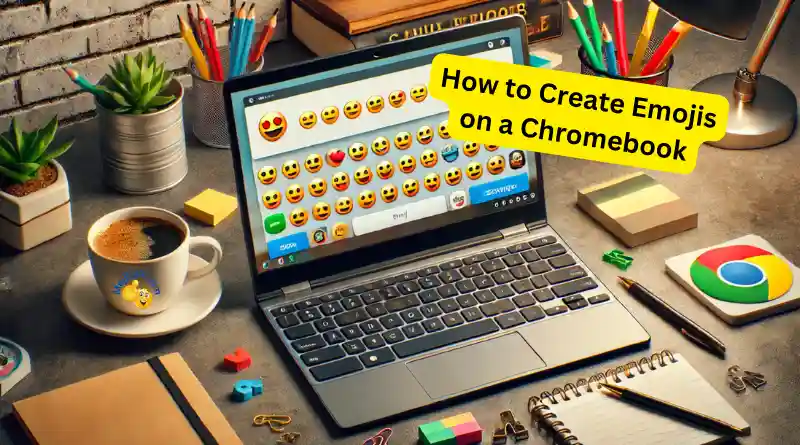
Chromebookで絵文字を作る方法:総合ガイド
Chromebookで絵文字を作成する方法をお探しですか?Chromebookで絵文字を作成するのは、とても簡単で楽しいですよ!🎉 友達とのチャット、メールの作成、ソーシャルメディアの更新など、絵文字はメッセージに色彩と感情を加えることができます。このガイドでは、Chromebookで絵文字にアクセスして使用するさまざまな方法を紹介します。さあ、始めましょう!
キーボードショートカットを使用する ⌨️
Chromebookで絵文字キーボードを素早く表示させる方法の1つは、キーボードショートカットを使うことです。方法は以下のとおりです。
- カーソルを配置するまず、絵文字を挿入したいテキストフィールドをクリックします。.
- ショートカットキーを押してください:長押し
検索 (またはランチャー) + Shift + Spaceキー。この組み合わせで絵文字キーボードが開きます。. - 絵文字を閲覧して選択様々な絵文字、記号、顔文字が表示されるポップアップウィンドウが現れます。カテゴリを閲覧するか、検索バーを使用して目的の絵文字を見つけてください。.
個人的なヒント:この方法は速くて簡単なので、いつも使っています!💨 友達とチャットしているときは、素早くキーを押すと、あっという間に絵文字の世界が現れます!🌟
右クリック方法🖱️
マウスやトラックパッドを使用したい場合、右クリックの方法がより便利かもしれません。
- テキストフィールドで右クリックテキストフィールドにカーソルを置き、右クリックするか、トラックパッドを2本指でタップします。.
- 絵文字を選択表示されるコンテキストメニューから「絵文字」をクリックします。これにより、絵文字のポップアップウィンドウが開きます。.
- 絵文字を選択してください利用可能な絵文字を参照し、クリックしてテキストに挿入します。.
オン・スクリーン・キーボードを使用する
タッチスクリーンChromebookをお使いの方や、画面上のキーボードを使うのが好きな方のために、絵文字へのアクセス方法をご紹介します。
- オンスクリーンキーボードを有効にする右下隅の時刻をクリックして設定に移動し、「設定」を選択してください。次に、
高度 > アクセシビリティ > アクセシビリティ機能の管理「オンスクリーンキーボードを有効にする」オプションをオンにします。. - キーボードを開きます: キーボードアイコンをドック(画面右下隅)でクリックします。.
- 絵文字アイコンをタップ画面上のキーボードの左上隅にある絵文字アイコンをタップして、絵文字メニューを開きます。.
- 絵文字を挿入絵文字を選択すると、テキストに挿入されます。.
Chrome拡張機能を使って 🌐
さらに多くのオプションや機能が必要な場合は、Chrome拡張機能を使用するのが良い方法かもしれません。
- 絵文字拡張機能をインストールするChromeウェブストアに移動し、「Emoji Keyboard by EmojiOne」のような絵文字拡張機能を検索してください。.
- Chromeに拡張機能を追加拡張機能のインストールには、「Chromeに追加」をクリックしてください。.
- 拡張機能を使用してくださいアドレスバーの隣にある拡張機能アイコンをクリックし、使用したい絵文字を選択してください。その後、任意のテキストフィールドにコピー&ペーストしてください。.
Googleドキュメントの絵文字 📄
Googleドキュメントで絵文字を使うことも、ドキュメントを充実させる素晴らしい方法です。
- Googleドキュメントを開く絵文字を追加したいドキュメントを開きます。.
- 絵文字を挿入クリックしてください
挿入 > 特殊文字. 表示されるボックスで「絵文字」と検索し、利用可能なオプションから選択してください。. - 選択して挿入挿入したい絵文字をクリックしてください。.
豆知識: Emojis(絵文字)を使うと、メッセージや文書がより魅力的で表現豊かになることをご存知でしたか?😃 テキストに個性を加えるために、私はそれらを使うのが大好きです!💬
主な収穫
これで、Chromebookで絵文字にアクセスして使用するための複数の方法を紹介しました。キーボードショートカットを使ったり、右クリックしたり、画面上のキーボードを使ったり、Chrome拡張機能を追加したりと、これらの方法を使えば、メッセージを簡単に絵文字で彩ることができます。これらの方法を試してみて、ご自身に最適なものを見つけてください。絵文字楽しんでくださいね!😊
より詳しいガイドやヒントについては、次のようなリソースをご覧ください。 ライフワイヤー そして ビーボム.
 Chromebookで絵文字をカスタマイズする🎨
Chromebookで絵文字をカスタマイズして、より自分らしく表現できるのは、絵文字を使う上で非常にクールな点の一つです。Chromebookには、絵文字を調整してパーソナライズするためのいくつかの方法があります。その方法を以下に示します。
絵文字カスタマイズ拡張機能 🌐
Chrome拡張機能は、絵文字を追加するためだけではなく、カスタマイズにも役立ちます。方法は以下の通りです。
- 拡張機能をインストールするChrome ウェブストアにアクセスし、「Emoji Kitchen」や「Emoji Customizer」のような絵文字カスタマイズ拡張機能を検索してください。.
- Chromeに追加拡張機能のインストールには、「Chromeに追加」をクリックしてください。.
- 拡張機能を開くアドレスバーの隣にある拡張機能アイコンをクリックして開いてください。.
- 絵文字のカスタマイズ: 拡張機能で提供されているツールを使用して、既存の絵文字を組み合わせて変更し、ユニークな絵文字を作成します。たとえば、絵文字を組み合わせて スマイリーフェイス クールな絵文字 😎 を作成するためにサングラスをかけて.
個人的なおすすめ:これらの拡張機能を使って、その時の気分にぴったりの絵文字を作れるのがお気に入りなんです。まるで自分だけの絵文字工房みたい!🛠️
パーソナライズされた絵文字のためのBitmojiの使用 🤳
Bitmojiは、あなたに似たパーソナル絵文字を作成するためのもう一つの素晴らしい方法です。始めるには、以下の手順に従ってください:
- ビットモジをダウンロード: Bitmojiアプリをインストールしてください。 Google Play ストア.
- アバターを作成アプリを開いて、顔のパーツ、髪型、服装などを選んでアバターを作成しましょう。.
- ChromeにBitmojiを追加Bitmoji Chrome拡張機能をChromeウェブストアからインストールします。.
- テキストでBitmojiを使用するパーソナライズされた絵文字を閲覧するには、Bitmoji拡張機能アイコンをクリックしてください。テキスト、メール、ソーシャルメディアの投稿にドラッグアンドドロップできます。.
豆知識:私のBitmojiは私そっくりなんだ!自分の顔が載っている絵文字を友達に送るのがすごく楽しい。みんないつも大笑いしてくれるよ!😂
ユニークな表現を組み合わせる絵文字 🤔💡
一つの絵文字だけでは、自分の気持ちを表現しきれないことがあります。. 絵文字の組み合わせ より複雑な感情やアイデアを伝えるのに役立ちます。方法は以下の通りです。
- 絵文字を選択: 組み合わせたい絵文字を選択してください。たとえば、以下のような絵文字を使用できます。 ハートの絵文字 ❤️と 🔥 🔥愛が熱い.
- それらを一緒に挿入してください絵文字をテキストフィールドに並べて配置してください。それらが組み合わさって、ユニークな表現になります。.
例:朝のコーヒーを陽気な気分で飲んでいることを誰かに伝えたいとき、私はよく🌞☕を使います。ちょっとしたことですが、メッセージがより楽しくなります!
Unicodeによる高度なカスタマイズ 🎯
テクノロジーに詳しいユーザーであれば、Unicodeを使ってさらにカスタマイズされた絵文字を作成することができます。簡単なガイドはこちらです。
- Unicode絵文字を探す:~のようなウェブサイトを訪れる Unicode.org さまざまな絵文字のUnicodeを見つける.
- Unicodeをコピー使用したい絵文字のUnicodeをコピーしてください。.
- Unicodeを挿入Unicodeをテキストフィールドに貼り付けると、自動的に絵文字に変換されます。.
Pro Tip: Unicode allows for some really advanced customizations. If you’re into coding or just love tinkering with tech, this method is for you! 🧑💻
主な収穫
Customizing emojis on your Chromebook adds a personal touch to your digital communications. Whether you’re using extensions, Bitmoji, combining emojis, or playing with Unicode, there are endless ways to make your messages uniquely yours. Give these methods a try and let your creativity shine! 🌟
Troubleshooting Emoji Issues on Chromebook 🚨
Sometimes, you might encounter issues with emojis on your Chromebook. Whether they’re not showing up correctly or you can’t access them, here are some troubleshooting tips to help you resolve common problems.
Emoji Not Showing Up Correctly 😕
If emojis aren’t displaying correctly on your Chromebook, it could be due to several reasons. Here’s how to troubleshoot:
-
Check Your Chromebook’s Software: Ensure your Chromebook is up-to-date. Go to
Settings > About Chrome OS > Check for updatesand install any available updates. An outdated OS might not support the latest emojis. -
Update Your Browser: Make sure your Chrome browser is also up-to-date. Click on the three dots in the upper-right corner, go to
Help > About Google Chrome, and check for updates. -
Check Font Support: Some emojis might not be supported by the fonts installed on your Chromebook. Installing additional fonts can sometimes resolve this issue.
Personal Experience: Once, I had a problem with emojis not showing up in my emails. After updating my Chromebook, the issue was resolved! 📧👍
Unable to Access Emoji Keyboard 🚫⌨️
If you can’t bring up the emoji keyboard, try these steps:
- Keyboard Shortcut: Ensure you’re using the correct shortcut
検索 (またはランチャー) + Shift + Space. If this doesn’t work, it might be disabled. - Enable Emoji Keyboard: Go to
Settings > Advanced > Languages and input > Input methodand make sure the emoji keyboard is enabled. - Reboot Your Chromebook: Sometimes a simple restart can fix the issue. Click on the time in the bottom-right corner and select “Sign out”, then restart your device.
Fun Fact: Rebooting your device can solve a surprising number of problems. It’s like giving your Chromebook a fresh start! 🔄
Emojis Not Working in Specific Apps 📱
If emojis work in some apps but not others, the issue might be app-specific. Here’s what to do:
- Update the App: Ensure the app you’re using is updated to the latest version. Visit the Google Play Store and check for updates.
- Check App Settings: Some apps have their own settings for emoji support. Explore the app’s settings to see if there’s an option to enable or configure emojis.
- Reinstall the App: If updating doesn’t work, try uninstalling and reinstalling the app.
Using a Different Keyboard App 🎹
If the built-in emoji keyboard isn’t meeting your needs, you can try using a third-party keyboard app:
- Download a Keyboard App: Go to the Google Play Store and search for popular keyboard apps like “Gboard” or “SwiftKey”.
- Install and Set Up: Follow the instructions to install and set up the new keyboard. These apps often have enhanced emoji support and additional customization options.
- Switch Keyboards: To switch between keyboards, go to
Settings > Advanced > Languages and input > Input methodand select your preferred keyboard.
Example: I use Gboard on my Chromebook because it has a fantastic range of emojis and easy access to them. Plus, it’s super customizable! 🎨
主な収穫
Troubleshooting emoji issues on your Chromebook doesn’t have to be frustrating. By keeping your software updated, ensuring the correct settings, and exploring alternative keyboard options, you can make sure your emojis are always ready to add some fun to your messages. Give these tips a try and keep your digital communications lively and expressive! ✨
Fun Emoji Facts and Tips for Chromebook Users 🤩
Now that you know how to create and customize emojis on your Chromebook, let’s dive into some fun facts and additional tips to make your emoji game even stronger! 🌟
Fun Facts About Emojis 🎉
-
Origins of Emojis: Did you know that the first set of emojis was created in Japan in 1999 by Shigetaka Kurita? He designed 176 emojis for a mobile internet platform, and they quickly became popular worldwide.
-
世界絵文字デー: There’s a special day just for emojis! World Emoji Day is celebrated on July 17th each year. It’s a fun day to share your favorite emojis and celebrate their impact on digital communication.
-
Most Popular Emoji: The most popular emoji in the world is the “Face with Tears of Joy” 😂. It’s widely used to express laughter and happiness in texts and social media.
-
絵文字の組み合わせ: Emojis can be combined to create new meanings and expressions. For example, combining the 💡 and 🚀 emojis can suggest a “bright idea” or “launching an idea”.
Fun Fact: I love combining emojis to make my messages more creative. For instance, I use 🐱🍕 to show my love for cats and pizza – two of my favorite things! 😺🍕
Tips for Using Emojis Effectively 📲
-
オーディエンスを知る: While emojis can make messages more fun, it’s important to know your audience. Use emojis that are appropriate for the context and the person you’re communicating with.
-
酷使を避ける: Emojis are great, but too many can make your message hard to read. Use them to enhance your text, not overshadow it.
-
最新情報: New emojis are added regularly, so keep your device updated to access the latest ones. This ensures you have the newest ways to express yourself.
-
文化的感受性: Emojis can have different meanings in different cultures. Be mindful of how certain emojis might be interpreted by others to avoid misunderstandings.
Personal Tip: I like to use emojis to add a personal touch to my emails, but I always make sure they’re appropriate for the recipient. For instance, a smiley face 😊 is great for friends, but maybe not for a formal business email.
Emojis in Professional Communication 🖋️
Using emojis in professional settings can be tricky. Here are some tips to help you use them effectively:
-
控えめに: In professional emails or messages, use emojis sparingly. A simple thumbs up 👍 or smiley 😊 can add a friendly tone without being too casual.
-
文脈の問題: Make sure the context of your message is appropriate for emojis. For instance, celebrating a team success with a confetti emoji 🎉 can be uplifting.
-
Follow Company Culture: Different workplaces have different cultures regarding emoji use. Pay attention to how colleagues and supervisors use (or don’t use) emojis and follow suit.
Example: In my workplace, we often use emojis in team chats to celebrate milestones. A simple 🎯 or 💪 can really boost team morale!
Exploring New Emojis 🚀
Excited about new emojis? Here’s how to stay updated:
- アップデートの確認: Regularly update your Chromebook to access the latest emoji releases. New emojis are added with OS updates.
- Follow Emojipedia: Websites like エモジペディア provide updates on new emoji releases and their meanings.
- Participate in Emoji Voting: Some platforms allow users to vote on new emojis. Get involved and help shape the future of emojis!
Fun Activity: I love browsing through Emojipedia to find new emojis and learn about their meanings. It’s a fun way to stay ahead of the curve and impress my friends with the latest emoji trends! 📈
主な収穫
Emojis have become an essential part of digital communication, making our messages more expressive and fun. By knowing how to create, customize, and use emojis effectively on your Chromebook, you can enhance your digital interactions. Remember to stay updated with new emojis, use them appropriately, and enjoy the creativity they bring to your messages. Happy emoji-ing! 😄
Conclusion and Final Thoughts 💭
Emojis have revolutionized the way we communicate, adding layers of meaning and emotion to our digital interactions. On a Chromebook, creating and using emojis is straightforward and versatile. From quick keyboard shortcuts to personalized Bitmojis, there are numerous ways to enhance your messages and make them more engaging. Let’s summarize the key points we’ve covered:
Summary of Key Points 📋
- Creating Emojis: Use the
検索 (またはランチャー) + Shift + Spaceshortcut, right-click method, or on-screen keyboard to access emojis quickly and easily. - Customization: Personalize your emojis with Chrome extensions, Bitmoji, and creative combinations to better express yourself.
- Troubleshooting: Ensure your Chromebook and apps are updated, enable the emoji keyboard in settings, and consider using third-party keyboard apps if you face any issues.
- Fun Facts and Tips: Embrace the rich history of emojis, use them appropriately depending on the context, and stay updated with the latest releases from resources like Emojipedia.
Engaging with Emojis 🤗
Emojis are more than just fun images; they’re a universal language that transcends words. They help convey tone, emotion, and intent in ways text alone often cannot. Here are a few final tips to keep your emoji game strong:
- Experiment: Don’t be afraid to play around with different emojis to see which ones best express your thoughts and feelings.
- 最新情報: Keep an eye on new emoji releases and trends. Websites like モジエディット, Emojipedia and ライフワイヤー are great resources.
- Share Your Favorites: Share your favorite emojis and combinations with friends and 家族. It’s a fun way to connect and share a laugh.
Personal Note: I love discovering new emojis and finding creative ways to use them in my daily communications. It’s amazing how a small image can add so much meaning and fun to a message! 🌟
Final Thoughts ✨
Using emojis on your Chromebook can significantly enhance your digital communication, making your messages more vibrant and expressive. Whether you’re chatting with friends, writing emails, or posting on social media, emojis add a personal touch that words alone sometimes can’t convey. So go ahead, explore the world of emojis, and have fun expressing yourself in new and creative ways! 🎉
Thank you for joining me on this emoji adventure. If you have any questions or need further tips, feel free to reach out. Happy emoji-ing! 😊
10 Frequently Asked Questions About Using Emojis on How to Create Emojis on a Chromebook
To access the emoji keyboard, press the 検索 (またはランチャー) + Shift + Space keys simultaneously. This will open the emoji picker, allowing you to browse and select emojis.
Yes, you can use emojis in most applications on your Chromebook, including web browsers, email clients, messaging apps, and productivity tools.
Go to Settings > Advanced > Accessibility > Manage accessibility features and turn on the “Enable on-screen keyboard” option. Once enabled, click the keyboard icon in the bottom-right corner and then the emoji icon.
Ensure your Chromebook and Chrome browser are up-to-date. If the issue persists, try installing additional fonts or rebooting your device.
Yes, besides the 検索 (またはランチャー) + Shift + Space shortcut, you can also use Ctrl + Shift + U をクリックして絵文字ピッカーを表示します。
Chromebook uses the default system emojis, so customization is limited. However, you can use Chrome extensions for additional emoji styles and options.
Download the Bitmoji app from the Google Play Store and create your avatar. Then, install the Bitmoji Chrome extension to easily insert your personalized Bitmojis into messages.
Yes, some platforms support emoji shortcodes. For example, typing :) may automatically convert to a smiling face emoji, depending on the application.
Generally, there’s no specific limit, but excessive use of emojis can affect readability and may not be supported in all applications.
Using emojis on a Chromebook does not pose specific privacy concerns. They are treated as regular text characters and do not transmit personal information unless included in shared messages.




 English
  Español de México
  Português do Brasil
  日本語
日本語  Français
  Deutsch (Sie)